2.5.1. Enablers manager
2.5.1.1. Introduction
This enabler will serve as a registry of enablers and, in case they are deployed, the retrieval of their status. In particular, it will: (a) Allow the registration of an enabler (this is, from an ASSIST-IoT repository). Essential enablers will be pre-registered, (b) Retrieve a list of currently-running enablers, (c) Depict the status of an enabler, (d) facilitate the deployment of standalone enablers (mostly for those that have to be present at any deployment).
This enabler has reached a TRL of 7 during the execution of the ASSIST-IoT project.
2.5.1.2. Features
This enabler presents a visual interface to list, deploy, update and delete enablers by the interaction with the Smart Orchestrator.
2.5.1.3. Place in architecture
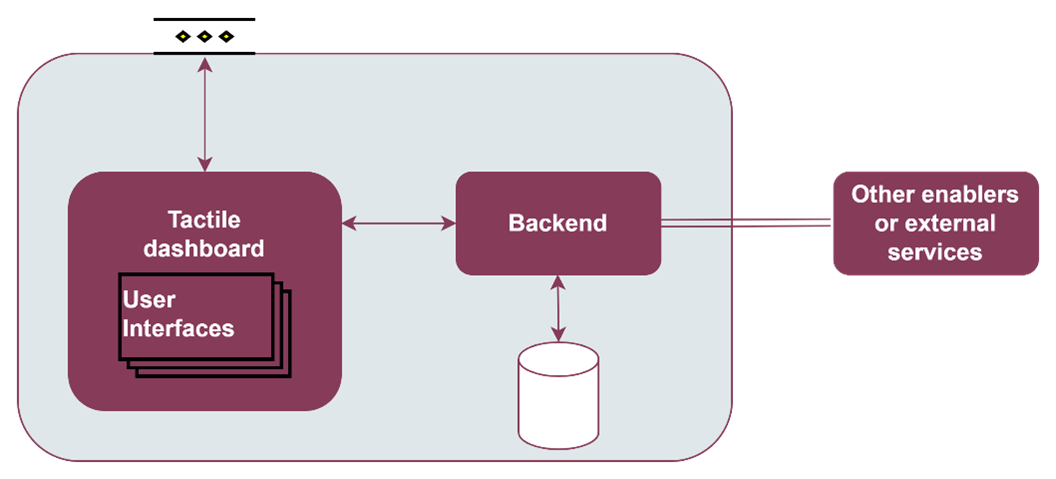
The Enablers manager is part of the vertical plane manageability enablers. Moreover, this enabler is a user interface that is part of the Tactile dashboard enabler.
2.5.1.4. User guide
This enabler is included in the Tactile Dashboard of the project, so a logged user with the right permissions can access to it by clicking its menu entry.
Method |
Endpoint |
Description |
Payload (if needed) |
Response format |
|---|---|---|---|---|
GET |
/enabler |
Enabler view of the dashboard |
Web page |
|
GET |
/helmrepository |
Helm chart repository view of the dashboard |
Web page |
2.5.1.4.1. Enablers
The enabler shows a table with the deployed enablers and some information: ID, name, Helm Chart, Version, K8s Cluster, Enabler Status and Detailed Status
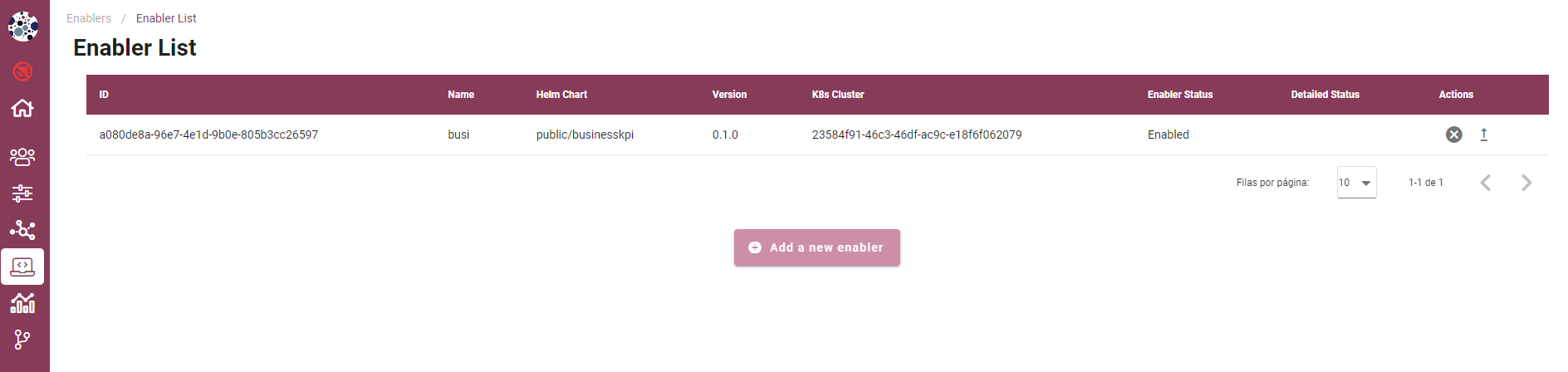
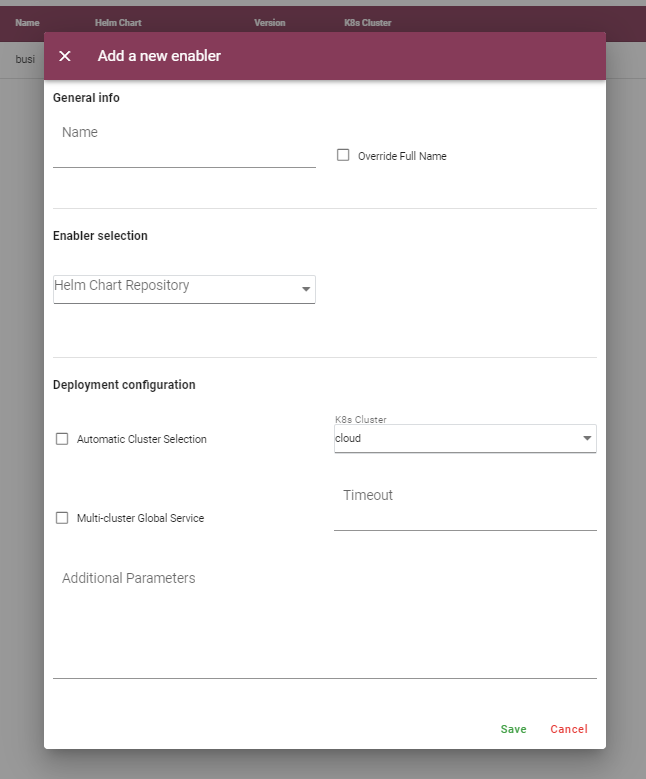
To deploy a new enabler, click on the Add a new enabler button and a form will appear.
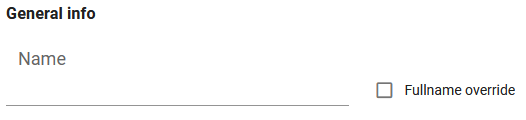
The first step it to fill in the enabler name. The full name of the enabler can be overrided by checking the Fullname override checkbox. This means that the value of the field Name of the form will be used to populate the fullnameOverride value of the enabler’s Helm chart, so the K8s services names of the enabler will follow this schema: <fullnameOverride>-<component_name>. For more information, please read the D6.7 of the project.
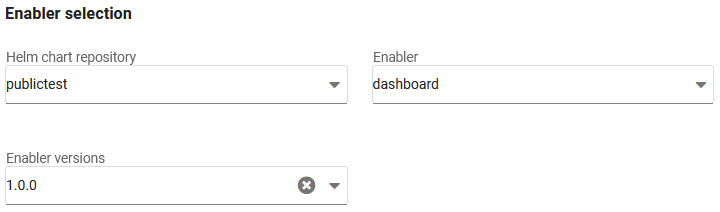
In order to select the enabler to deploy, first select a Helm chart repository from the list. Then a selectable will appear containing all the enablers of the selected repository. Select the desired enabler and, finally, choose a version from another selectable that will appear containing the available versions of the chosen enabler.
There are two options to deploy a new enabler:
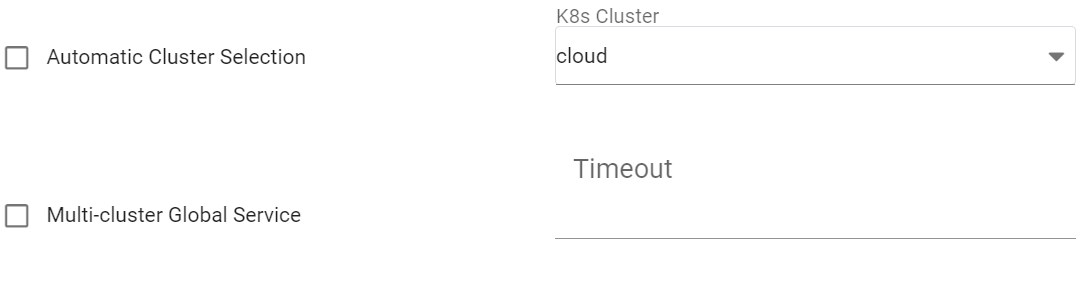
Select manually the K8s where will be deployed: uncheck the Auto scheduler checkbox and select a cluster.
Use the Auto scheduler functionality of the Smart Orchestrator: check the Auto scheduler checkbox and select a Placement policy. There are three potential placement policies: best-fit, worst-fit, and traffic-most. The best-fit approach situates the enabler in the cluster with the most available CPU and RAM, while the worst-fit places it where the least CPU and RAM are available. The traffic-most policy situates it where there is the highest network traffic.
Only if the cloud cluster has been manually selected to deploy the enabler on it, the Multi-cluster global service checkbox will appear. This option makes the service of the enabler’s main interface available to the enablers deployed on the other clusters. The use of a timeout is required to stop the installation of an enabler in case its time limit is exceeded.
The deployment of the new enabler can be configured by filling the Additional parameters box with a raw JSON object. The values included in this JSON object will replace the default values of the values.yaml file of the enabler Helm chart. In future versions, the challenge is to customize this form for each enabler, including all the customizable parameters in a user-friendly way.
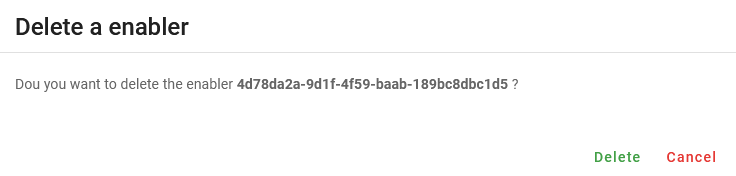
To delete an enabler, click on the Delete enabler button of the selected enabler and confirm the action in the dialog.
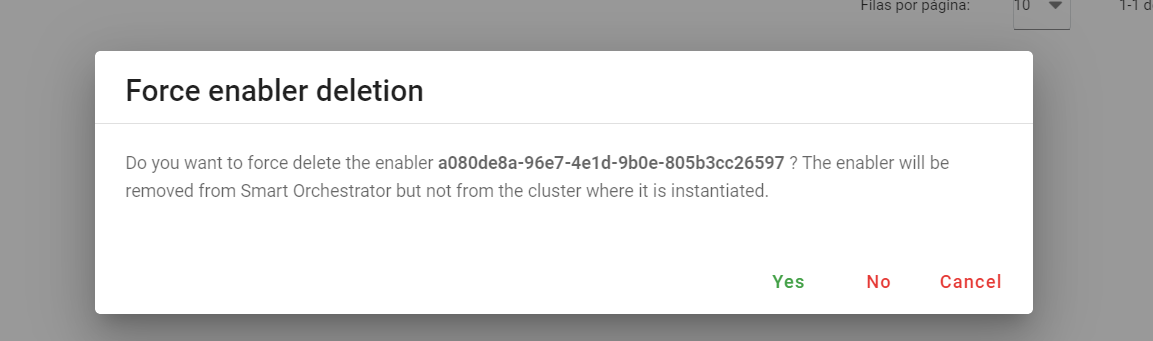
Before initiating deletion, there’s an option to forcibly delete in cases where the cluster is unreachable and deleting the enabler through regular means is not possible. When deletion is forced, the enabler is removed from the system but remains in the cluster.
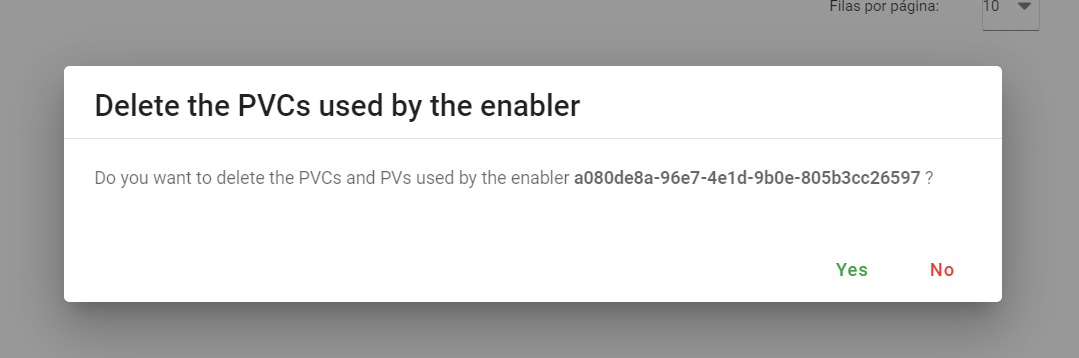
Finally, the persistent data can be also deleted or preserve it for installation of future releases.
2.5.1.4.2. Helm chart repositories
The enabler shows a table with the registered Helm chart repositories and some information: ID, name, description, URL, status and type (public or private). These registered repositories will be added with the Add a new enabler form. Upon uploading new charts to a repository, click the Update repository button located in the Actions column to refresh/update the list of charts.

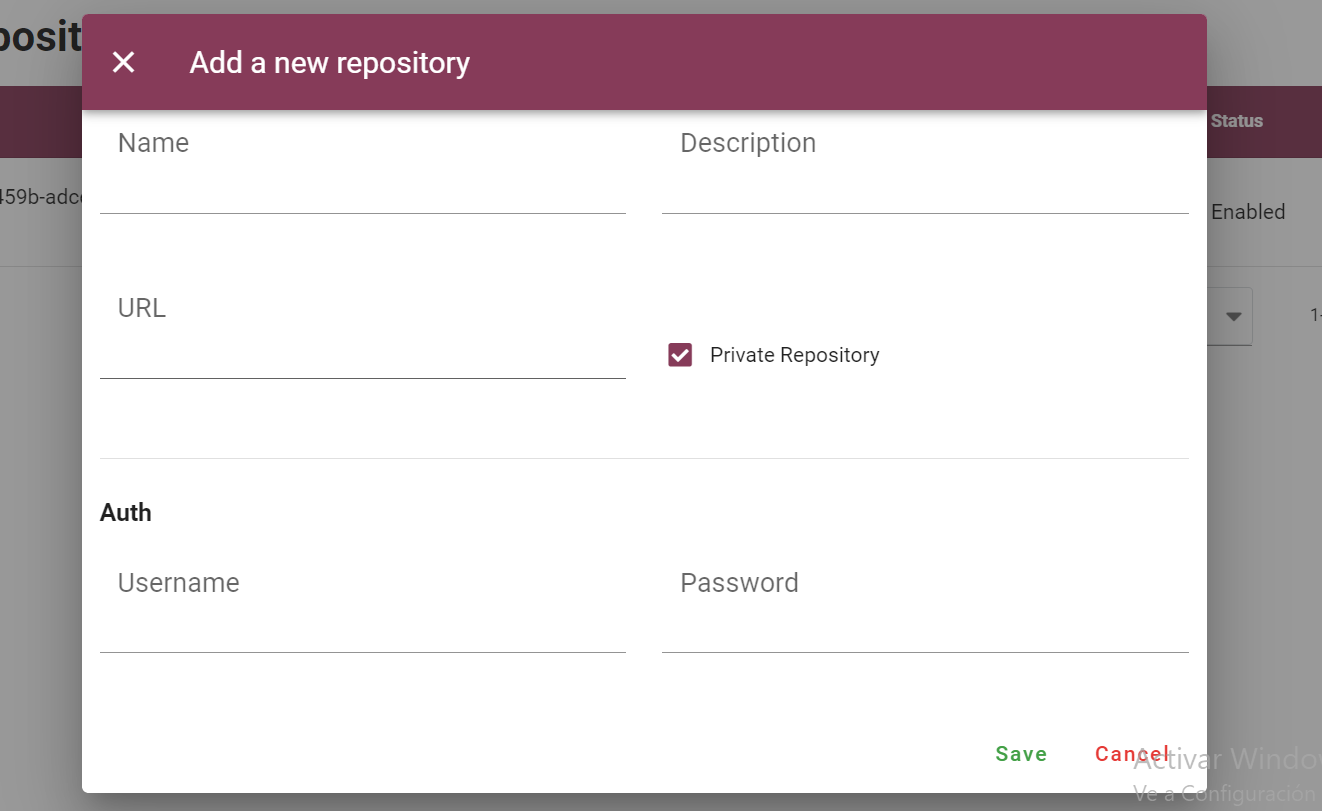
To register a new Helm chart repository, click on the Add a new repository button and a form will appear. There are two repository options categorized by type: private or public. For a public repository, the checkbox should remain unchecked, requiring the entry of a name, description, and URL. If a private repository is selected, two additional fields—username and password—are required.
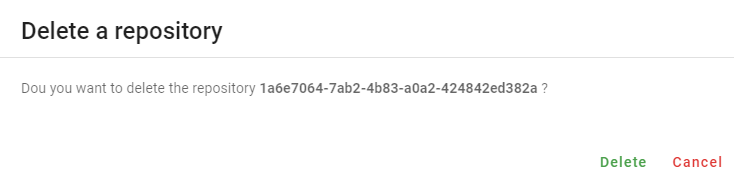
To delete a repository, click on the Delete repository button of the selected repository and confirm the action in the dialog.
2.5.1.5. Prerequisites
The Smart Orchestrator must be previously installed.
2.5.1.6. Installation
This enabler is part of the Tactile dashboard enabler, so it can be installed using the dashboard’s Helm chart, which can be found in the Package registry of the Gitlab’s public repository:
Add the Helm chart repository:
helm repo add assist-public-repo https://gitlab.assist-iot.eu/api/v4/projects/85/packages/helm/stableInstall the last version of the dashboard’s Helm chart
helm install assist-public-repo/manageability-dashboard
2.5.1.7. Configuration options
The dashboard’s Helm chart can be configured using the following environment variables:
web:
DASHBOARD_HOST_NAME: hostname of the backend.
DASHBOARD_HOST_PORT: port of the backend.
ENABLE_AUTH_IDM: enable the use of an identification manager and authorization enabler for authentication.
api:
JAVA_OPTS: Java options of Apache Tomcat. The database connection is configured using these options.
ORCHESTRATOR_API_URL: URL of the Smart Orchestrator’s API.
db:
POSTGRES_USER: PostgreSQL database user.
POSTGRES_PASSWORD: PostgreSQL database user password.
POSTGRES_DB: PostgreSQL database name.
2.5.1.8. Developer guide
For more information, read the Tactile dashboard enabler entry
2.5.1.9. Version control and release
Version 2.0.0. Fully functional and aligned with the version 4.0.0 of the Smart Orchestrator enabler.
2.5.1.10. License
Apache License Version 2.0
2.5.1.11. Notice (dependencies)
ASSIST-IoT - Architecture for Scalable, Self-*, human-centric, Intelligent, Se-cure, and Tactile next generation IoT
This project has received funding from the European Union’s Horizon 2020 research and innovation programme under grant agreement No 957258.
Manageability dashboard, which includes included 2 of the 3 manageability enablers: - Enabler for registration and status of enablers - Devices management enabler
Copyright 2020-2023 Universitat Politècnica de València
Included Software
ASSIST-IoT tactile dashboard enabler (https://github.com/assist-iot/tactile_dashboard), GNU AGPLv3
Used Software
PUI9 framework server 1.17.0 (https://github.com/Prodevelop/pui9-server), Apache-2.0 license
Spring framework (https://github.com/spring-projects/spring-framework), Apache-2.0 license
amcharts/amcharts5 (https://github.com/amcharts/amcharts5), Custom: https://www.amcharts.com/ license
foliojs-fork/fontkit (https://github.com/foliojs-fork/fontkit), MIT license
foliojs-fork/linebreak (https://github.com/foliojs-fork/linebreaker), MIT license
foliojs-fork/pdfkit (https://github.com/foliojs-fork/pdfkit), MIT license
foliojs-fork/restructure (https://github.com/foliojs-fork/restructure), MIT license
fortawesome/fontawesome-pro (https://github.com/FortAwesome/Font-Awesome), Custom: https://fontawesome.com/license. license
interactjs (https://github.com/taye/interact.js), MIT license
tinymce/tinymce-vue (https://github.com/tinymce/tinymce-vue), Apache-2.0 license
types/d3-array (https://github.com/DefinitelyTyped/DefinitelyTyped), MIT license
types/d3-axis (https://github.com/DefinitelyTyped/DefinitelyTyped), MIT license
types/d3-brush (https://github.com/DefinitelyTyped/DefinitelyTyped), MIT license
types/d3-chord (https://github.com/DefinitelyTyped/DefinitelyTyped), MIT license
types/d3-color (https://github.com/DefinitelyTyped/DefinitelyTyped), MIT license
types/d3-contour (https://github.com/DefinitelyTyped/DefinitelyTyped), MIT license
types/d3-delaunay (https://github.com/DefinitelyTyped/DefinitelyTyped), MIT license
types/d3-dispatch (https://github.com/DefinitelyTyped/DefinitelyTyped), MIT license
types/d3-drag (https://github.com/DefinitelyTyped/DefinitelyTyped), MIT license
types/d3-dsv (https://github.com/DefinitelyTyped/DefinitelyTyped), MIT license
types/d3-ease (https://github.com/DefinitelyTyped/DefinitelyTyped), MIT license
types/d3-fetch (https://github.com/DefinitelyTyped/DefinitelyTyped), MIT license
types/d3-force (https://github.com/DefinitelyTyped/DefinitelyTyped), MIT license
types/d3-format (https://github.com/DefinitelyTyped/DefinitelyTyped), MIT license
types/d3-geo (https://github.com/DefinitelyTyped/DefinitelyTyped), MIT license
types/d3-hierarchy (https://github.com/DefinitelyTyped/DefinitelyTyped), MIT license
types/d3-interpolate (https://github.com/DefinitelyTyped/DefinitelyTyped), MIT license
types/d3-path (https://github.com/DefinitelyTyped/DefinitelyTyped), MIT license
types/d3-polygon (https://github.com/DefinitelyTyped/DefinitelyTyped), MIT license
types/d3-quadtree (https://github.com/DefinitelyTyped/DefinitelyTyped), MIT license
types/d3-random (https://github.com/DefinitelyTyped/DefinitelyTyped), MIT license
types/d3-sankey (https://github.com/DefinitelyTyped/DefinitelyTyped), MIT license
types/d3-scale-chromatic (https://github.com/DefinitelyTyped/DefinitelyTyped), MIT license
types/d3-scale (https://github.com/DefinitelyTyped/DefinitelyTyped), MIT license
types/d3-selection (https://github.com/DefinitelyTyped/DefinitelyTyped), MIT license
types/d3-shape (https://github.com/DefinitelyTyped/DefinitelyTyped), MIT license
types/d3-time-format (https://github.com/DefinitelyTyped/DefinitelyTyped), MIT license
types/d3-time (https://github.com/DefinitelyTyped/DefinitelyTyped), MIT license
types/d3-timer (https://github.com/DefinitelyTyped/DefinitelyTyped), MIT license
types/d3-transition (https://github.com/DefinitelyTyped/DefinitelyTyped), MIT license
types/d3-zoom (https://github.com/DefinitelyTyped/DefinitelyTyped), MIT license
types/d3 (https://github.com/DefinitelyTyped/DefinitelyTyped), MIT license
types/geojson (https://github.com/DefinitelyTyped/DefinitelyTyped), MIT license
types/polylabel (https://github.com/DefinitelyTyped/DefinitelyTyped), MIT license
types/svg-arc-to-cubic-bezier (https://github.com/DefinitelyTyped/DefinitelyTyped), MIT license
acorn-node 1.8.2 (https://github.com/browserify/acorn-node), Apache-2.0 license
acorn-walk 7.2.0 (https://github.com/acornjs/acorn), MIT license
acorn 7.4.1 (https://github.com/acornjs/acorn), MIT license
adler-32 1.3.1 (https://github.com/SheetJS/js-adler32), Apache-2.0 license
amdefine 1.0.1 (https://github.com/jrburke/amdefine), BSD-3-Clause OR MIT license
array-from 2.1.1 (https://github.com/studio-b12/array-from), MIT license
ast-transform 0.0.0 (https://github.com/hughsk/ast-transform), MIT license
ast-types 0.7.8 (https://github.com/benjamn/ast-types), MIT license
axios 0.22.0 (https://github.com/axios/axios), MIT license
base64-js 1.3.1 (https://github.com/beatgammit/base64-js), MIT license
base64-js 1.5.1 (https://github.com/beatgammit/base64-js), MIT license
batch-processor 1.0.0 (https://github.com/wnr/batch-processor), MIT license
brfs 2.0.2 (https://github.com/substack/brfs), MIT license
brotli 1.3.2 (https://github.com/devongovett/brotli.js), MIT license
browser-resolve 1.11.3 (https://github.com/shtylman/node-browser-resolve), MIT license
browserify-optional 1.0.1 (https://github.com/devongovett/browserify-optional), MIT license
buffer-equal 0.0.1 (https://github.com/substack/node-buffer-equal), MIT license
buffer-from 1.1.2 (https://github.com/LinusU/buffer-from), MIT license
call-bind 1.0.2 (https://github.com/ljharb/call-bind), MIT license
cfb 1.2.2 (https://github.com/SheetJS/js-cfb), Apache-2.0 license
clone 1.0.4 (https://github.com/pvorb/node-clone), MIT license
codemirror 5.65.2 (https://github.com/codemirror/CodeMirror), MIT license
codepage 1.15.0 (https://github.com/SheetJS/js-codepage), Apache-2.0 license
commander 7.2.0 (https://github.com/tj/commander.js), MIT license
concat-stream 1.6.2 (https://github.com/maxogden/concat-stream), MIT license
convert-source-map 1.8.0 (https://github.com/thlorenz/convert-source-map), MIT license
core-js 3.18.1 (https://github.com/zloirock/core-js), MIT license
core-util-is 1.0.3 (https://github.com/isaacs/core-util-is), MIT license
crc-32 1.2.2 (https://github.com/SheetJS/js-crc32), Apache-2.0 license
crypto-js 4.1.1 (https://github.com/brix/crypto-js), MIT license
current-device 0.10.2 (https://github.com/matthewhudson/current-device), MIT license
d3-array 2.12.1 (https://github.com/d3/d3-array), BSD-3-Clause license
d3-array 3.1.6 (https://github.com/d3/d3-array), ISC license
d3-axis 3.0.0 (https://github.com/d3/d3-axis), ISC license
d3-brush 3.0.0 (https://github.com/d3/d3-brush), ISC license
d3-chord 3.0.1 (https://github.com/d3/d3-chord), ISC license
d3-color 3.1.0 (https://github.com/d3/d3-color), ISC license
d3-contour 3.0.1 (https://github.com/d3/d3-contour), ISC license
d3-delaunay 6.0.2 (https://github.com/d3/d3-delaunay), ISC license
d3-dispatch 3.0.1 (https://github.com/d3/d3-dispatch), ISC license
d3-drag 3.0.0 (https://github.com/d3/d3-drag), ISC license
d3-dsv 3.0.1 (https://github.com/d3/d3-dsv), ISC license
d3-ease 3.0.1 (https://github.com/d3/d3-ease), BSD-3-Clause license
d3-fetch 3.0.1 (https://github.com/d3/d3-fetch), ISC license
d3-force 3.0.0 (https://github.com/d3/d3-force), ISC license
d3-format 3.1.0 (https://github.com/d3/d3-format), ISC license
d3-geo 3.0.1 (https://github.com/d3/d3-geo), ISC license
d3-hierarchy 3.1.2 (https://github.com/d3/d3-hierarchy), ISC license
d3-interpolate 3.0.1 (https://github.com/d3/d3-interpolate), ISC license
d3-path 1.0.9 (https://github.com/d3/d3-path), BSD-3-Clause license
d3-path 3.0.1 (https://github.com/d3/d3-path), ISC license
d3-polygon 3.0.1 (https://github.com/d3/d3-polygon), ISC license
d3-quadtree 3.0.1 (https://github.com/d3/d3-quadtree), ISC license
d3-random 3.0.1 (https://github.com/d3/d3-random), ISC license
d3-sankey 0.12.3 (https://github.com/d3/d3-sankey), BSD-3-Clause license
d3-scale-chromatic 3.0.0 (https://github.com/d3/d3-scale-chromatic), ISC license
d3-scale 4.0.2 (https://github.com/d3/d3-scale), ISC license
d3-selection 3.0.0 (https://github.com/d3/d3-selection), ISC license
d3-shape 1.3.7 (https://github.com/d3/d3-shape), BSD-3-Clause license
d3-shape 3.1.0 (https://github.com/d3/d3-shape), ISC license
d3-time-format 4.1.0 (https://github.com/d3/d3-time-format), ISC license
d3-time 3.0.0 (https://github.com/d3/d3-time), ISC license
d3-timer 3.0.1 (https://github.com/d3/d3-timer), ISC license
d3-transition 3.0.1 (https://github.com/d3/d3-transition), ISC license
d3-zoom 3.0.0 (https://github.com/d3/d3-zoom), ISC license
d3 7.4.4 (https://github.com/d3/d3), ISC license
d 1.0.1 (https://github.com/medikoo/d), ISC license
dash-ast 2.0.1 (https://github.com/goto-bus-stop/dash-ast), Apache-2.0 license
datatables.net-colreorder-dt 1.5.3 (https://github.com/DataTables/Dist-DataTables-ColReorder-DataTables), MIT license
datatables.net-colreorder 1.5.3 (https://github.com/DataTables/Dist-DataTables-ColReorder), MIT license
datatables.net-dt 1.10.23 (https://github.com/DataTables/Dist-DataTables-DataTables), MIT license
datatables.net-fixedcolumns-dt 3.3.2 (https://github.com/DataTables/Dist-DataTables-FixedColumns-DataTables), MIT license
datatables.net-fixedcolumns 3.3.2 (https://github.com/DataTables/Dist-DataTables-FixedColumns), MIT license
datatables.net-fixedheader-dt 3.1.8 (https://github.com/DataTables/Dist-DataTables-FixedHeader-DataTables), MIT license
datatables.net-fixedheader 3.1.8 (https://github.com/DataTables/Dist-DataTables-FixedHeader), MIT license
datatables.net-keytable-dt 2.6.0 (https://github.com/DataTables/Dist-DataTables-KeyTable-DataTables), MIT license
datatables.net-keytable 2.6.0 (https://github.com/DataTables/Dist-DataTables-KeyTable), MIT license
datatables.net-select-dt 1.3.1 (https://github.com/DataTables/Dist-DataTables-Select-DataTables), MIT license
datatables.net-select 1.3.1 (https://github.com/DataTables/Dist-DataTables-Select), MIT license
datatables.net 1.10.23 (https://github.com/DataTables/Dist-DataTables), MIT license
deep-equal 1.1.1 (https://github.com/substack/node-deep-equal), MIT license
deep-is 0.1.4 (https://github.com/thlorenz/deep-is), MIT license
deepmerge 4.2.2 (https://github.com/TehShrike/deepmerge), MIT license
define-properties 1.1.3 (https://github.com/ljharb/define-properties), MIT license
delaunator 5.0.0 (https://github.com/mapbox/delaunator), ISC license
dfa 1.2.0 (https://github.com/devongovett/dfa), MIT license
diff-match-patch 1.0.5 (https://github.com/JackuB/diff-match-patch), Apache-2.0 license
dom-serializer 1.3.2 (https://github.com/cheeriojs/dom-renderer), MIT license
domelementtype 2.2.0 (https://github.com/fb55/domelementtype), BSD-2-Clause license
domhandler 4.3.1 (https://github.com/fb55/domhandler), BSD-2-Clause license
domutils 2.8.0 (https://github.com/fb55/domutils), BSD-2-Clause license
duplexer2 0.1.4 (https://github.com/deoxxa/duplexer2), BSD-3-Clause license
echarts 5.2.1 (https://github.com/apache/echarts), Apache-2.0 license
element-resize-detector 1.2.4 (https://github.com/wnr/element-resize-detector), MIT license
entities 2.2.0 (https://github.com/fb55/entities), BSD-2-Clause license
es5-ext 0.10.61 (https://github.com/medikoo/es5-ext), ISC license
es6-iterator 2.0.3 (https://github.com/medikoo/es6-iterator), MIT license
es6-map 0.1.5 (https://github.com/medikoo/es6-map), MIT license
es6-set 0.1.5 (https://github.com/medikoo/es6-set), MIT license
es6-symbol 3.1.1 (https://github.com/medikoo/es6-symbol), MIT license
es6-symbol 3.1.3 (https://github.com/medikoo/es6-symbol), ISC license
escape-string-regexp 4.0.0 (https://github.com/sindresorhus/escape-string-regexp), MIT license
escodegen 1.14.3 (https://github.com/estools/escodegen), BSD-2-Clause license
escodegen 1.2.0 (https://github.com/Constellation/escodegen), BSD license
esprima 1.0.4 (https://github.com/ariya/esprima), BSD license
esprima 4.0.1 (https://github.com/jquery/esprima), BSD-2-Clause license
estraverse 1.5.1 (https://github.com/Constellation/estraverse), BSD license
estraverse 4.3.0 (https://github.com/estools/estraverse), BSD-2-Clause license
estree-is-function 1.0.0 (https://github.com/goto-bus-stop/estree-is-function), Apache-2.0 license
esutils 1.0.0 (https://github.com/Constellation/esutils), BSD license
esutils 2.0.3 (https://github.com/estools/esutils), BSD-2-Clause license
event-emitter 0.3.5 (https://github.com/medikoo/event-emitter), MIT license
ext 1.6.0 (https://github.com/medikoo/es5-ext.git#ext), ISC license
fast-levenshtein 2.0.6 (https://github.com/hiddentao/fast-levenshtein), MIT license
flatpickr 4.6.13 (https://github.com/chmln/flatpickr), MIT license
follow-redirects 1.14.9 (https://github.com/follow-redirects/follow-redirects), MIT license
frac 1.1.2 (https://github.com/SheetJS/frac), Apache-2.0 license
function-bind 1.1.1 (https://github.com/Raynos/function-bind), MIT license
get-assigned-identifiers 1.2.0 (https://github.com/goto-bus-stop/get-assigned-identifiers), Apache-2.0 license
get-intrinsic 1.1.1 (https://github.com/ljharb/get-intrinsic), MIT license
has-symbols 1.0.3 (https://github.com/inspect-js/has-symbols), MIT license
has-tostringtag 1.0.0 (https://github.com/inspect-js/has-tostringtag), MIT license
has 1.0.3 (https://github.com/tarruda/has), MIT license
htmlparser2 6.1.0 (https://github.com/fb55/htmlparser2), MIT license
iconv-lite 0.6.3 (https://github.com/ashtuchkin/iconv-lite), MIT license
inherits 2.0.4 (https://github.com/isaacs/inherits), ISC license
internmap 1.0.1 (https://github.com/mbostock/internmap), ISC license
internmap 2.0.3 (https://github.com/mbostock/internmap), ISC license
is-arguments 1.1.1 (https://github.com/inspect-js/is-arguments), MIT license
is-core-module 2.8.1 (https://github.com/inspect-js/is-core-module), MIT license
is-date-object 1.0.5 (https://github.com/inspect-js/is-date-object), MIT license
is-plain-object 5.0.0 (https://github.com/jonschlinkert/is-plain-object), MIT license
is-regex 1.1.4 (https://github.com/inspect-js/is-regex), MIT license
isarray 1.0.0 (https://github.com/juliangruber/isarray), MIT license
jquery 3.5.1 (https://github.com/jquery/jquery), MIT license
levn 0.3.0 (https://github.com/gkz/levn), MIT license
magic-string 0.25.1 (https://github.com/rich-harris/magic-string), MIT license
markerjs2 2.21.4 (https://github.com/ailon/markerjs2), MIT* license
merge-source-map 1.0.4 (https://github.com/keik/merge-source-map), MIT license
minimist 1.2.5 (https://github.com/substack/minimist), MIT license
moment-timezone 0.5.33 (https://github.com/moment/moment-timezone), MIT license
moment 2.29.1 (https://github.com/moment/moment), MIT license
nanoid 3.3.1 (https://github.com/ai/nanoid), MIT license
next-tick 1.1.0 (https://github.com/medikoo/next-tick), ISC license
object-inspect 1.12.0 (https://github.com/inspect-js/object-inspect), MIT license
object-is 1.1.5 (https://github.com/es-shims/object-is), MIT license
object-keys 1.1.1 (https://github.com/ljharb/object-keys), MIT license
optionator 0.8.3 (https://github.com/gkz/optionator), MIT license
pako 0.2.9 (https://github.com/nodeca/pako), MIT license
parse-srcset 1.0.2 (https://github.com/albell/parse-srcset), MIT license
path-parse 1.0.7 (https://github.com/jbgutierrez/path-parse), MIT license
pdfmake 0.2.5 (https://github.com/bpampuch/pdfmake), MIT license
picocolors 1.0.0 (https://github.com/alexeyraspopov/picocolors), ISC license
png-js 1.0.0 (https://github.com/devongovett/png.js), MIT* license
polylabel 1.1.0, ISC license
postcss 8.4.12 (https://github.com/postcss/postcss), MIT license
prelude-ls 1.1.2 (https://github.com/gkz/prelude-ls), MIT license
process-nextick-args 2.0.1 (https://github.com/calvinmetcalf/process-nextick-args), MIT license
pui9-admin 1.17.0-beta.54 (https://github.com/Prodevelop/pui9-client), Apache-2.0 license
pui9-base 1.17.0-beta.54 (https://github.com/Prodevelop/pui9-client), Apache-2.0 license
pui9-components 1.17.0-beta.54 (https://github.com/Prodevelop/pui9-client), Apache-2.0 license
pui9-dashboard 1.17.0-beta.54 (https://github.com/Prodevelop/pui9-client), Apache-2.0 license
pui9-datatables 1.17.0-beta.54 (https://github.com/Prodevelop/pui9-client), Apache-2.0 license
pui9-login 1.17.0-beta.54 (https://github.com/Prodevelop/pui9-client), Apache-2.0 license
pui9-menu 1.17.0-beta.54 (https://github.com/Prodevelop/pui9-client), Apache-2.0 license
pui9-mixins 1.17.0-beta.54 (https://github.com/Prodevelop/pui9-client), Apache-2.0 license
pui9-notifications 1.17.0-beta.54 (https://github.com/Prodevelop/pui9-client), Apache-2.0 license
pui9-requests 1.17.0-beta.54 (https://github.com/Prodevelop/pui9-client), Apache-2.0 license
pui9-store 1.17.0-beta.54 (https://github.com/Prodevelop/pui9-client), Apache-2.0 license
pui9-styles 1.17.0-beta.54 (https://github.com/Prodevelop/pui9-client), Apache-2.0 license
pui9-translations 1.17.0-beta.54 (https://github.com/Prodevelop/pui9-client), Apache-2.0 license
quote-stream 1.0.2 (https://github.com/substack/quote-stream), MIT license
readable-stream 2.3.7 (https://github.com/nodejs/readable-stream), MIT license
regexp.prototype.flags 1.4.1 (https://github.com/es-shims/RegExp.prototype.flags), MIT license
regression 2.0.1 (https://github.com/Tom-Alexander/regression-js), MIT license
resolve 1.1.7 (https://github.com/substack/node-resolve), MIT license
resolve 1.22.0 (https://github.com/browserify/resolve), MIT license
robust-predicates 3.0.1 (https://github.com/mourner/robust-predicates), Unlicense license
rw 1.3.3 (https://github.com/mbostock/rw), BSD-3-Clause license
safe-buffer 5.1.2 (https://github.com/feross/safe-buffer), MIT license
safer-buffer 2.1.2 (https://github.com/ChALkeR/safer-buffer), MIT license
sanitize-html 2.7.0 (https://github.com/apostrophecms/sanitize-html), MIT license
sax 1.2.4 (https://github.com/isaacs/sax-js), ISC license
scope-analyzer 2.1.2 (https://github.com/goto-bus-stop/scope-analyzer), Apache-2.0 license
shallow-copy 0.0.1 (https://github.com/substack/shallow-copy), MIT license
sortablejs 1.10.2 (https://github.com/SortableJS/Sortable), MIT license
source-map-js 1.0.2 (https://github.com/7rulnik/source-map-js), BSD-3-Clause license
source-map 0.1.43 (https://github.com/mozilla/source-map), BSD license
source-map 0.5.7 (https://github.com/mozilla/source-map), BSD-3-Clause license
source-map 0.6.1 (https://github.com/mozilla/source-map), BSD-3-Clause license
sourcemap-codec 1.4.8 (https://github.com/Rich-Harris/sourcemap-codec), MIT license
ssf 0.11.2 (https://github.com/SheetJS/ssf), Apache-2.0 license
static-eval 2.1.0 (https://github.com/browserify/static-eval), MIT license
static-module 3.0.4 (https://github.com/substack/static-module), MIT license
string_decoder 1.1.1 (https://github.com/nodejs/string_decoder), MIT license
supports-preserve-symlinks-flag 1.0.0 (https://github.com/inspect-js/node-supports-preserve-symlinks-flag), MIT license
svg-arc-to-cubic-bezier 3.2.0 (https://github.com/colinmeinke/svg-arc-to-cubic-bezier), ISC license
through2 2.0.5 (https://github.com/rvagg/through2), MIT license
through 2.3.8 (https://github.com/dominictarr/through), MIT license
tiny-inflate 1.0.3 (https://github.com/devongovett/tiny-inflate), MIT license
tinyqueue 2.0.3 (https://github.com/mourner/tinyqueue), ISC license
tslib 2.3.0 (https://github.com/Microsoft/tslib), 0BSD license
type-check 0.3.2 (https://github.com/gkz/type-check), MIT license
type 1.2.0 (https://github.com/medikoo/type), ISC license
type 2.6.0 (https://github.com/medikoo/type), ISC license
typedarray 0.0.6 (https://github.com/substack/typedarray), MIT license
unicode-properties 1.3.1 (https://github.com/devongovett/unicode-properties), MIT license
unicode-trie 2.0.0 (https://github.com/devongovett/unicode-trie), MIT license
util-deprecate 1.0.2 (https://github.com/TooTallNate/util-deprecate), MIT license
velocity-animate 1.5.2 (https://github.com/julianshapiro/velocity), MIT license
vue-codemirror 4.0.6 (https://github.com/surmon-china/vue-codemirror), MIT license
vue-grid-layout 2.3.12 (https://github.com/jbaysolutions/vue-grid-layout), MIT* license
vue-i18n 8.26.5 (https://github.com/kazupon/vue-i18n), MIT license
vue-infinite-loading 2.4.5 (https://github.com/PeachScript/vue-infinite-loading), MIT license
vue-router 3.5.2 (https://github.com/vuejs/vue-router), MIT license
vue-sanitize 0.2.1 (https://github.com/daichirata/vue-sanitize), MIT license
vue2-notify 1.4.0 (https://github.com/websmurf/vue2-notify), MIT license
vue 2.6.14 (https://github.com/vuejs/vue), MIT license
vuedraggable 2.24.3 (https://github.com/SortableJS/Vue.Draggable), MIT license
vuetify 2.5.9 (https://github.com/vuetifyjs/vuetify), MIT license
vuex 3.6.2 (https://github.com/vuejs/vuex), MIT license
wmf 1.0.2 (https://github.com/SheetJS/js-wmf), Apache-2.0 license
word-wrap 1.2.3 (https://github.com/jonschlinkert/word-wrap), MIT license
word 0.3.0 (https://github.com/SheetJS/js-word), Apache-2.0 license
xlsx 0.18.5 (https://github.com/SheetJS/sheetjs), Apache-2.0 license
xmldoc 1.1.2 (https://github.com/nfarina/xmldoc), MIT license
xtend 4.0.2 (https://github.com/Raynos/xtend), MIT license
zrender 5.2.1 (https://github.com/ecomfe/zrender), BSD-3-Clause license
List of licenses
Amcharts custom license (https://www.amcharts.com/online-store/licenses-explained/)
MIT license (https://opensource.org/licenses/MIT)
Apache-2.0 license (https://www.apache.org/licenses/LICENSE-2.0)
BSD-3-Clause license (https://opensource.org/licenses/BSD-3-Clause)
BSD-2-Clause license (https://opensource.org/licenses/BSD-2-Clause)
BSD-1-Clause license (https://opensource.org/licenses/BSD-1-Clause)
ISC license (https://opensource.org/licenses/ISC)