1.2.8. VPN enabler
1.2.8.1. Introduction
This enabler will facilitate the access to a node or device from a different network to the site’s private network using a public network (e.g., the Internet) or a non-trusted private network.
1.2.8.2. Features
This enabler act as a VPN server (based on WireGuard VPN) that allows client connections to the created VPN network and, if allowed, to the host machine network. For that reason, this enabler can allow the connection to a Kubernetes node machine and its private network from a machine allocated in a different private network. Furthermore, a REST API is included to facilitate the administration of the VPN network.
NOTE1: At this moment, the enabler persists the data in a MongoDB database, which also is included in the Helm chart. When the LTSE enabler is ready, the information will be persisted in it.
NOTE2: At this point in time, this enabler is limited to one replica in each Kubernetes deployment and cannot be auto scaled due to its specific functionalities. If there are more than one replica, each pod will act as an independent VPN because each pod will have its own WireGuard network interface at the container level which won’t be synchronized among them. For example, a new client will only be created or deleted in one pod.
NOTE3: At this moment, to connect two host machines directly using a VPN (for instance, to add it as a remote k8s cluster/node via VPN), it is recommended to use a VPN without using the containerised version. Instructions for this use case will be provided.
1.2.8.3. Place in architecture
The VPN enabler is located in the Smart Network and Control plane of the ASSIST-IoT architecture.
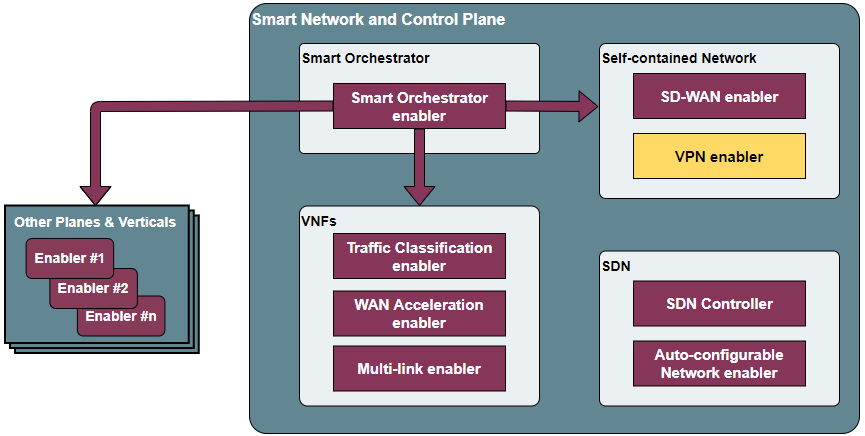
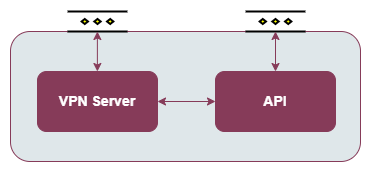
The enabler is composed of two elements:
VPN Server: the core of the VPN, the clients will connect to this component.
API REST: an API REST is provided to manage the VPN clients (create, delete, enable and disable) and to obtain information about the VPN network and its clients.
1.2.8.4. User guide
1.2.8.4.1. REST API endpoints
Method |
Endpoint |
Description |
Payload (if needed) |
Response format |
|---|---|---|---|---|
GET |
/info |
Get information of the WireGuard network interface |
WireGuard output command in plain text |
|
GET |
/info/conf |
Get the configuration file of the WireGuard network interface |
WireGuard configuration file in plain text |
|
GET |
/keys |
Obtain the public, private and pre-shared keys to create a new client |
{“public”:String, “private”:String, “preshared”:String} |
|
POST |
/client |
Create a new client |
{“publicKey”:String, “presharedKey”:String} |
{“serverPublicKey”:String, “serverIP”:String, “serverPort”:Integer, “clientIP”:String, “allowedIPs”:String, “message”:String} |
DELETE |
/client |
Delete a client |
{“publicKey”:String} |
|
PUT |
/client/enable |
Enable a client |
{“publicKey”:String} |
|
PUT |
/client/disable |
Disable a client |
{“publicKey”:String} |
1.2.8.4.2. Generate a WireGuard server private key
Using the WireGuard cli:
wg genkey
1.2.8.4.3. Create a VPN client
Generate the client keys (public, private and pre-shared) sending an HTTP GET request to the /keys endpoint.
curl --location --request GET 'http://<wg_api_IP_address>:<wg_api_port>/keys'
Response example:
{
  "public": "RfGgIjkPJC9U6b0OE8UHdnJwAA4hCV1FfQOX1/FaIzo=",
  "private": "YDhkBXyym+L255TwBGHWXXWcaMqaGqlJLLyc4XyyE18=",
  "preshared": "FIOSD2ErZISlHwFsBRK5RVyd7ENhvJ4x3W101BoewqQ="
}
Create a client in the API making an HTTP POST request to the /client endpoint, including the generated public and pre-shared keys in the request body.
curl --location --request POST '<wg_api_IP_address>:<wg_api_port>/client' \
    --header 'Content-Type: application/json' \
    --data-raw '{
        "publicKey": <client_public_key>,
        "presharedKey": <client_preshared_key>
    }'
Response example:
{
  "serverPublicKey": "iJT+CW4QoWNDIDo763CPx1TZ3x9bSNTN5t0uQbzo5jo=",
  "serverIP": "192.168.1.67",
  "serverPort": "51820",
  "clientIP": "192.168.2.56/32",
  "allowedIPs": "0.0.0.0/0,::/0",
  "message": "Peer added successfully"
}
Create the WireGuard client configuration file (.conf file extension) with the data obtained in the responses of the last two requests. A complete example filled with the responses of the last two example requests is provided, and, furtheremore, a configuration file template can be found in the next subsection.
[Interface]
PrivateKey = YDhkBXyym+L255TwBGHWXXWcaMqaGqlJLLyc4XyyE18=
Address = 192.168.2.56/32

[Peer]
PublicKey = iJT+CW4QoWNDIDo763CPx1TZ3x9bSNTN5t0uQbzo5jo=
PresharedKey = FIOSD2ErZISlHwFsBRK5RVyd7ENhvJ4x3W101BoewqQ=
AllowedIPs = 0.0.0.0/0,::/0
Endpoint = 192.168.1.67:51820
PersistentKeepalive = 25
Connect to the VPN using a WireGuard client program. The instructions are provided in the Connect to the VPN subsection.
1.2.8.4.4. Client configuration file template
[Interface]
PrivateKey = <wg_client_private_key>
Address = <wg_client_IP_address>

[Peer]
PublicKey = <wg_server_public_key>
PresharedKey = <wg_preshared_key>
AllowedIPs = <wg_allowed_IPs>
Endpoint = <wg_server_IP_address_or_DNS_name>:<wg_server_udp_port>
PersistentKeepalive = <number_of_seconds> (no mandatory)
1.2.8.4.5. Connect to the VPN
In Windows, use the TunSafe VPN client (https://tunsafe.com/):
Create the WireGuard configuration file
Import the configuration file
Connect to the VPN
In Linux, use the WireGuard cli.
Install WireGuard and WireGuard tools
Create the WireGuard configuration file
Create the WireGuard interface and connect to the VPN:
sudo wg-quick up <path_to_wg_config_file>
To disconnect:
sudo wg-quick down <path_to_wg_config_file>
1.2.8.5. Prerequisites
In Linux, set these sysctl values:
sysctl -w net.ipv4.ip_forward=1
sysctl -w net.ipv4.conf.all.src_valid_mark=1
Or edit these values in the /etc/sysctl.conf file.
1.2.8.6. Installation
The enabler is provided as a Helm chart.
1.2.8.7. Configuration options
The enabler can be configured using the following environment variables:
WG_PRIVATE_KEY: private key for the WireGuard server. To generate it, see the Generate a WireGuard server private key section.
API_PORT: TCP port where it is exposed the API.
SERVER_IP: public IP or DNS name of the machine where runs the VPN enabler.
WG_SUBNET: internal subnet of the WireGuard interface. The value must be the first IP of the subnet in CIDR format (<subnet_first_ip>/<subnet_mask_bits>, e.g., for the subnet 192.168.2.0/24, the value must be 192.168.2.1/24). This parameter is important because determines the maximum number of clients of the VPN. For the example subnet, the maximum number of clients will be 253.
WG_PORT: UDP port where it is exposed the WireGuard network interface.
PEER_ALLOWED_IPS: allowed subnets for the clients. A value of 0.0.0.0/0,::/0 will allow the clients to connect to every network via the VPN, including to the internet. Specifying a subnetwork (e.g. 10.1.243.0/24) the client will only be able to reach this subnetwork.
MONGODB_HOST: host of the MongoDB database.
MONGODB_PORT: port number of the MongoDB database.
MONGODB_USER: user of the MongoDB database.
MONGODB_PASS: password for the selected user of the MongoDB database.
1.2.8.8. Developer guide
1.2.8.8.1. Local code development
Install WireGuard and WireGuard tools in the machine: https://www.wireguard.com/install/
Create a WireGuard network interface for testing. A configuration file example for creating the interfacecan be found at the section below.
In Linux, add sudo before all the wg commands to run the API without being containerized, e.g.:
utils/index.js, line 34: await exec(`wg ... --> await exec(`sudo wg ... )
Install the dependencies. Execute:
npm install
Run the enabler in development mode. Execute:
npm run server
1.2.8.8.2. WireGuard network interface configuration file
1.2.8.8.2.1. Template
[Interface]
Address = <wg_network_interface_IP_address>
PostUp = iptables -A FORWARD -i <wg_network_interface> -j ACCEPT; iptables -t nat -A POSTROUTING -o <host_network_interface> -j MASQUERADE
PostDown = iptables -D FORWARD -i <wg_network_interface> -j ACCEPT; iptables -t nat -D POSTROUTING -o <host_network_interface> -j MASQUERADE
ListenPort = <wg_udp_port>
PrivateKey = <wg_private_key>
1.2.8.8.2.2. Example
[Interface]
Address = 192.168.2.1/24
PostUp = iptables -A FORWARD -i wg0 -j ACCEPT; iptables -t nat -A POSTROUTING -o ens18 -j MASQUERADE
PostDown = iptables -D FORWARD -i wg0 -j ACCEPT; iptables -t nat -D POSTROUTING -o ens18 -j MASQUERADE
ListenPort = 51820
PrivateKey = qAuVUEbmcI3ofLsjJmQ6+RtEejoNX+WHs7QOsIccn0Y=
1.2.8.9. Version control and release
Version 1.0. Improvements and new functionalities will be added in future versions.
1.2.8.10. License
The licenses of internal code are under analysis. Once assessed, an open source one will be selected (likely Apache 2.0).
1.2.8.11. Notice(dependencies)
In next releases, this enabler will depend on the Long-Term Storage Enabler to persist the data.
Furthermore, the VPN enabler uses WireGuard. The Wireguard’s Linux kernel components are released under the GPLv2 license, as is the Linux kernel itself.